From entry form to winner: how ReadyMembership manages your full awards lifecycle
If you run an awards program, you’ll know the hard part usually isn’t the ceremony. It’s the months before it: answering “am I eligible for this category?” emails, chasing incomplete entries, working out which judge has scored what, and then turning a pile of scoring sheets into a shortlist you’d be happy to defend. Good awards management software for associations should take most of that off your plate, but only if it covers the whole lifecycle rather than one piece of it.
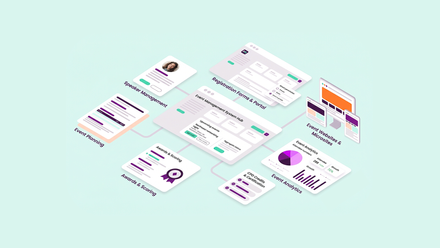
Most associations end up stitching it together instead: a form tool for entries, a spreadsheet to track them, email for judges, and someone’s evening spent adding up scores. Every handover is a point where data gets retyped or lost. ReadyMembership’s awards module runs the whole process in one place, connected to your member records, so here’s what each stage looks like in practice.
How each stage of your awards program works
1. Setting up categories and the entry form
You start by building an award set: the categories, any regions, the prize levels (gold, silver and bronze, winner and commended, or whatever your program uses) and the questions entrants answer. Questions can apply to every category or only to specific ones, so a best newcomer category can ask for different information from a lifetime achievement award.
Eligibility is handled by the same rules engine that runs the rest of the platform. You can limit entry to members, to particular membership grades, to people who attended an event, or to any other criteria in your CRM, and non-members can be asked to register before they enter. Because the form knows who’s logged in, it can pre-fill details you already hold, so entrants aren’t retyping their name, organization and membership number for the third year running.
2. Inviting entries and managing submissions
Once the award set is ready, you can send personalized invitations to everyone who’s eligible, rather than a general announcement that half your list can’t act on. Entrants can save a draft and come back to it, edit their entry up to the closing date, and check its status by logging in, which cuts down the “did you get my entry?” emails.
On your side, every entry sits in one admin view with its status, so you can see what’s complete, what’s still in draft and which categories need a push before the deadline.
3. Shortlisting entries for judging
Entries don’t go straight to the judges. Once entries close, your team reviews them, deals with anything incomplete, ineligible or filed in the wrong category, and shortlists the ones that should go forward. If every eligible entry goes through, you can shortlist them all at once, and either way you’re left with a record of what went forward and why. It’s also the step that most often catches people out the first time, which is why we wrote about what happens when judges can’t see any entries.
4. Allocating judges
Judges are added from your CRM and assigned to the categories (and regions, if you use them) they’ll be scoring. Entries can be allocated automatically by rules such as category, region or expertise, with manual overrides for the awkward cases. Each judge gets an email telling them what they’re judging, and a judging area in their own account showing the shortlisted entries in their categories, which ones they’ve scored and which are still waiting.
5. Scoring
Judges score each entry against the criteria you’ve set for that category, and criteria can be weighted so the things that matter most count for more in the total. You can also choose whether judges can comment on individual criteria, mark an entry as not meeting the criteria, or recommend a prize.
Conflicts of interest are declared by the judge on the entry itself, and you decide in advance what happens next: either the judge is removed from that entry only, or from the whole category with any scores they’ve already given set aside. Either way, there’s a record of who declared what.
Automated reminders go to judges as the deadline approaches, and you can see marks as they’re submitted, so you’re not finding out on the final day that a third of the panel hasn’t started. AAPL has seen what that kind of visibility does in a related workflow: after its certification committee moved to automated review notifications in ReadyMembership, all 43 applications assigned for review in its January to February 2026 cycle were completed, where 7 of 18 had been missed by the deadline in the previous cycle.
6. Choosing winners and keeping the record
When scoring closes, results are pulled together for you. You can review each category’s entries with their totals and drill down to each judge’s individual marks, which makes it easy to spot a score that’s out of line before anything is confirmed. You then assign prizes, and if your program has regional rounds feeding a national final, you set which prize levels move entries through to the next stage.
Results can be exported for the ceremony script, your magazine or a press release, and winners can be featured on an awards showcase page on your website. Winner and entrant emails go out from the same platform, using the entry data you already hold, so there’s no export-and-mail-merge step.
Every entry, score and comment stays in the system afterwards. Next year you’re starting from last year’s setup and a full history of who entered and won, rather than a blank spreadsheet, and because entrants and judges are your CRM contacts, that history is connected to everything else you know about them.
Where ReadyMembership fits
Awards management is built into ReadyMembership, so entries, judges and winners sit alongside your membership, events and email data instead of in a separate tool. AAPL, which replaced six systems with ReadyMembership, is moving its scholarship program, which distributes $250,000 in awards each year, from paper onto the awards module. Read the AAPL case study, or see the awards management features.